The installer builds the release binary with Cargo.lock and installs ~/.local/bin/sdeck-plus, the launcher
~/.local/share/applications/dev.streamdeck.EventMonitor.desktop, the icon
~/.local/share/icons/hicolor/scalable/apps/sdeck-plus.svg and the license in ~/.local/share/doc/sdeck-plus/.
PREFIX overrides the executable prefix, an absolute XDG_DATA_HOME the data directory, and CARGO_TARGET_DIR the build output.
It runs from any directory, refuses to run as root, does not enable autostart or launch the app, and re-running it updates the files
(./install.sh --help for usage).
After installing
Afterwards it reports a missing PATH entry, a running instance still using the old executable, a Start at login entry pointing elsewhere,
missing optional tools, and a connected device your user cannot open (printing the udev rule an administrator can install, without running it).
Uninstall
Remove it with ./install.sh --uninstall, using the same PREFIX and XDG_DATA_HOME. Configuration, profiles, artwork and any
Start at login entry are kept, and a running instance is not stopped.
Requirements
Build and runtime requirements
Rust stable toolchain and Cargo, a C toolchain, pkg-config and glib-compile-resources
GTK 4.8 or newer and libudev development files
A StatusNotifierItem tray (for example, Omarchy's)
Stream Deck + over USB, with permission to open its HID node
Keyboard and mouse-wheel actions need /dev/uinput access
Optional tools and device access
Optional, per action: xdg-utils (files and websites), wireplumber (wpctl), pipewire (pw-dump),
curl (weather), wl-clipboard (text), procps-ng (closing processes), mpv (sounds), canberra-gtk-play (timer chime), an MPRIS player (media transport).
If opening the device is denied, use your distribution's supported mechanism, for example an administrator-installed udev rule scoped to this VID/PID with
TAG+="uaccess", then reconnect the device. Missing tools or access are reported; the app never installs packages or changes permissions.
How each part of the application behaves, where it stores its data and what it needs from the system.
Saving or inspecting a binding never executes it; only Test action or input from the device does.
The app never installs packages, changes permissions or edits OBS configuration.
Getting around
Main window and connection status
The header says in plain words whether the Stream Deck + is connected (for example "Stream Deck + not connected — plug it in")
next to a colored Not connected, Unavailable, Disconnected or Connected badge;
hover it for the USB IDs (VID 0x0FD9, PID 0x0084) and technical details.
If the device is absent, inaccessible or disconnected, the window stays open, reports the state and retries detection.
Touch gestures use Elgato's 800 × 100 logical-pixel space and are reported after the interaction completes,
not as separate contact start and release events. Each dial in the preview shows the action it is assigned to.
Configure an action
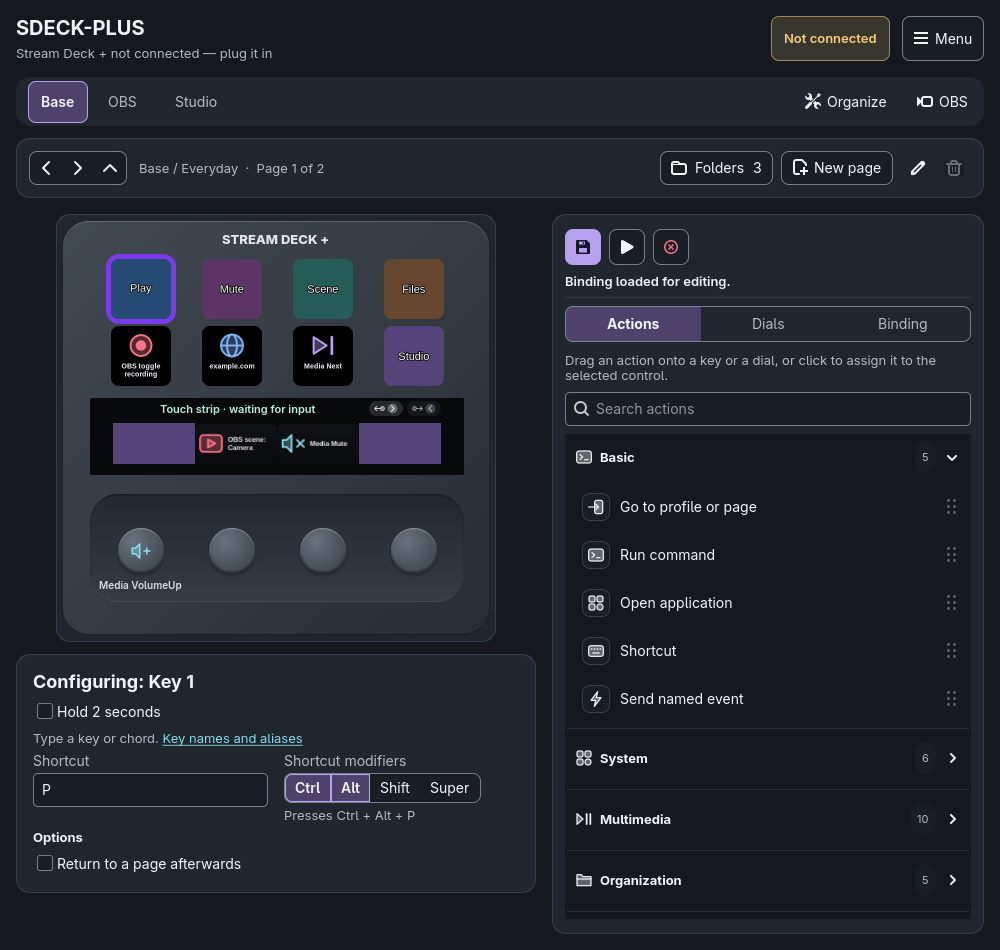
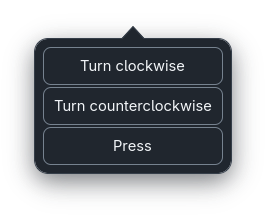
For keypad buttons, use the right-hand panel, which has three tabs. Actions: search the catalog, open a category and drag an action onto a key or a dial. Dropping on a dial asks whether it belongs to Turn clockwise, Turn counterclockwise or Press; clicking an action with a dial selected uses the event chosen in the inspector.
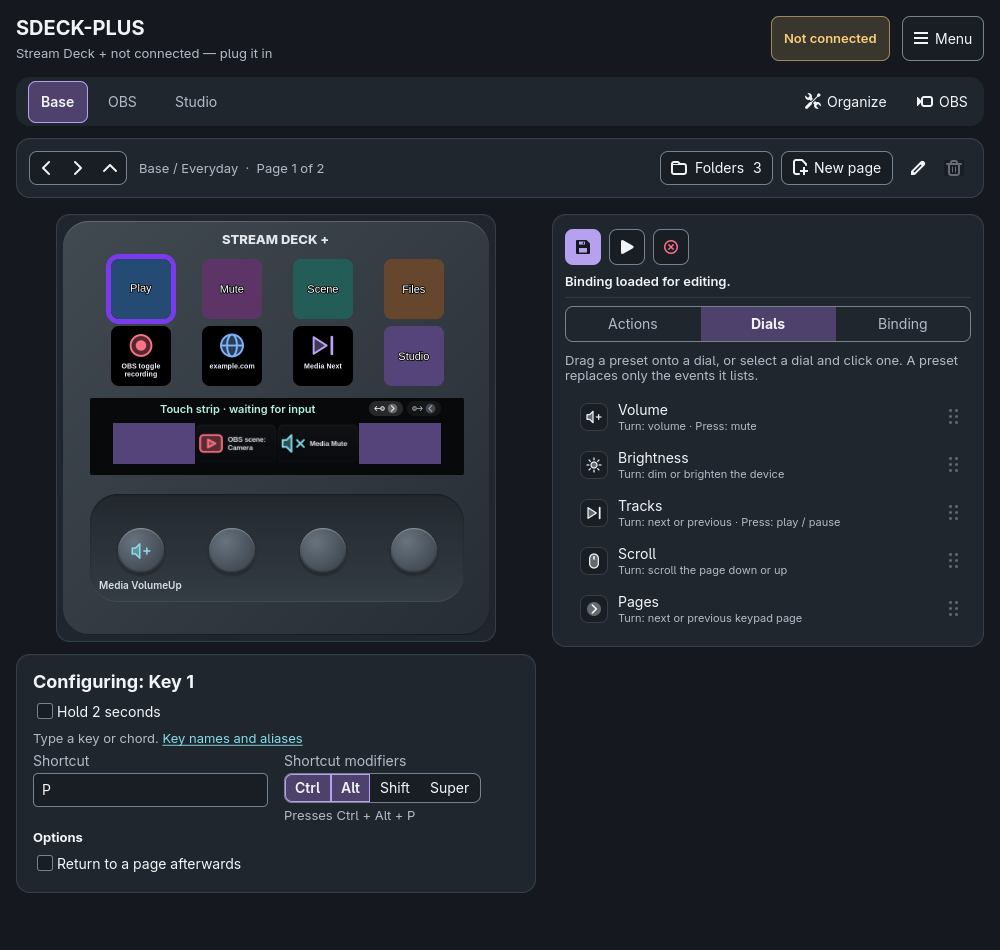
Dials: drag a preset (Volume, Brightness, Tracks, Scroll or Pages) onto a dial. A preset assigns turn and, where it makes sense, press, replaces only the events it lists and saves immediately without running anything.
Binding: options saved with the selected control, such as live information.
Its configuration opens below the fixed-size device preview; long forms scroll inside the settings area. Actions without parameters save on drop without executing;
actions that need settings keep the previous binding active until you complete the form and click Save binding.
You can also select a key and click a catalog action instead of dragging.
Choosing another action replaces the draft already on that control; if the draft is on a different control you are asked before it is discarded. Existing key-to-key dragging still swaps saved settings and artwork.
The action selector remains available for dials and the touch strip; keys use the Actions catalog:
Select a profile tab and page, then click one of the eight keys, the touch strip or one of the four dials.
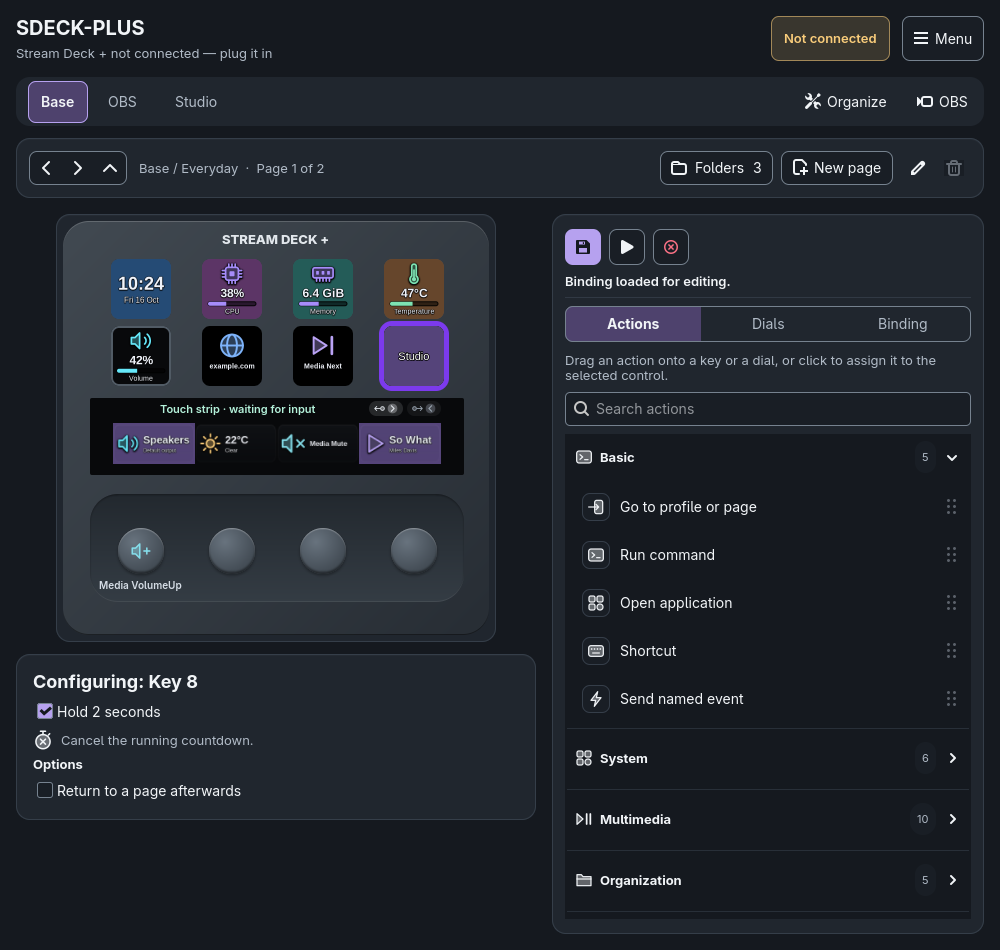
For dials and the touch strip, pick an event valid for that control: dial press, clockwise or counterclockwise; touch tap, hold, flick and directional swipes. A key's Event, Action, Category and More-actions selectors are hidden: choose its action from the Actions catalog, and its own fields and description appear below. Select Hold 2 seconds to configure its optional secondary action without replacing the short action.
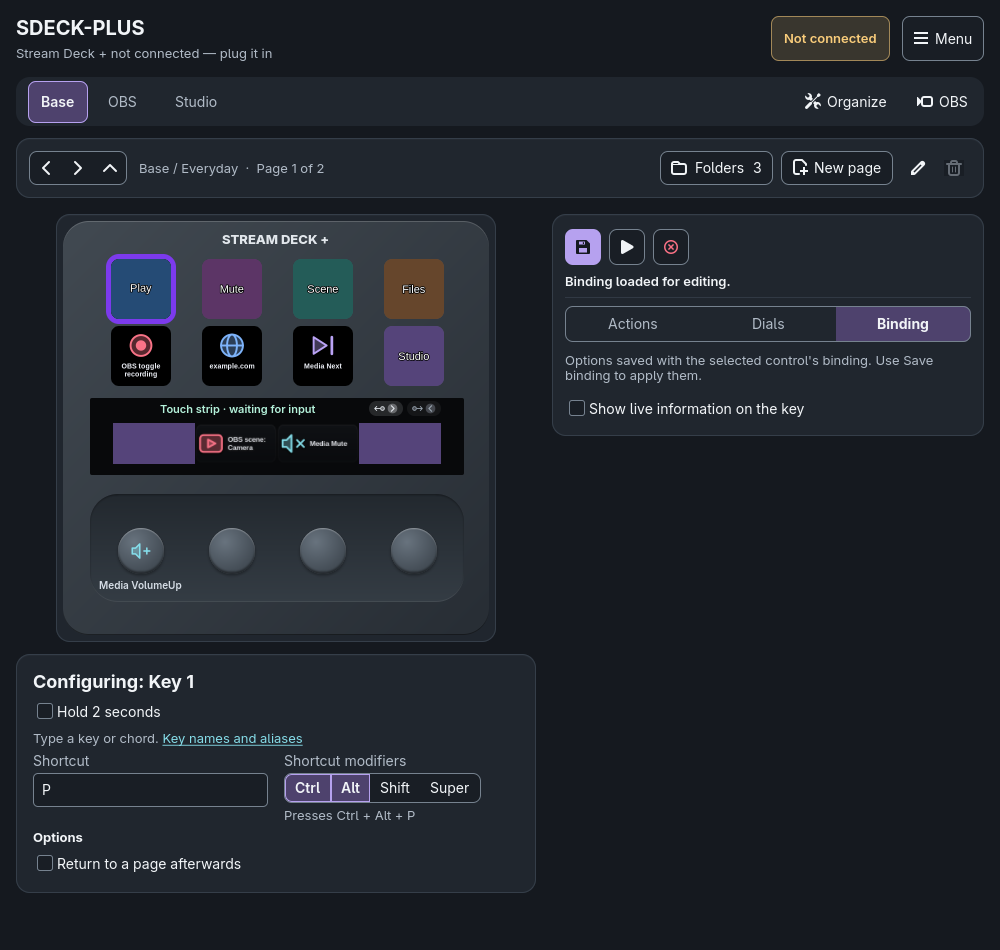
Pick an action and fill only its visible fields. Shortcuts accept a full chord such as CTRL + D or one key with the optional Ctrl, Alt, Shift and Super toggles.
The three icon buttons at the top of the right-hand panel act on the selected control: the floppy disk (Save binding) creates or updates the control event, the play button (Test action) runs it once, and the red circled X (Remove binding) clears it. Hover any of them for a tooltip that explains what it does; the result message appears right below them.
A toast confirms success only after the binding is written to disk and disappears after five seconds; errors stay until dismissed or replaced.
Selecting a configured event loads its saved action for editing. Bindings do not inherit or fall through between layers.
Actions catalog, selected key settings and the Save, Test and Remove toolbar.
Assignment summaries
Hover a control to see its assignments on the selected keypad page or touchscreen page, including Unassigned events:
dials list Press, CW and CCW; the strip lists tap, hold, flick and directional swipes.
Legacy exact-tick rotation overrides appear separately. Long text is shortened; select the event to see every saved field.
Summaries refresh after saving or removing bindings, changing layers and Go to profile or page actions.
Selection, live input and swapping keys
The control being edited has a thick violet ring. A pressed key or dial gets a green outline and brightens while held,
a dial turn flashes amber, and a touch tap, hold or flick lights the touched zone in cyan, drawn over any artwork.
Drag a key onto another key in the preview to exchange their action, background image and text styling on the current page.
An empty key exchanges its empty configuration too. The exchange is saved automatically and never runs either action;
other pages, dials, touch zones and unsaved editor drafts are unchanged. Dropping on the same key or cancelling changes nothing.
Controls and actions
Action types
The Action menu offers layer and page switching, shell commands, launching applications, keyboard shortcuts,
named events, the categorized More actions, Play sound and None.
Untouched buttons, including those on new profiles and pages, start with None: it keeps a saved binding that does nothing,
can still show artwork, text or live information, and never schedules a page return.
Test action runs the selected action immediately and can affect the desktop, the device or OBS; test only what you intend to perform.
Dials and device brightness
The four dials have independent press, clockwise and counterclockwise bindings, for example volume up and down on rotation and mute on press,
or relative brightness on another dial. Mouse-wheel directions are vertical or horizontal.
Device brightness is the Stream Deck's display, not the monitor backlight. Sleep sets brightness to zero and wake restores the remembered level;
before an explicit absolute level, relative and wake actions assume 100% because the device cannot report its brightness.
Legacy exact-tick rotation bindings remain supported and take priority over directional ones.
The Dials tab provides Volume, Brightness, Tracks, Scroll and Pages presets. Drag one onto a dial to save its listed events; unlisted events are preserved. For a single action, drag it from Actions and choose the dial event in the popup.
Dials tab with the five ready-to-use presets.Dropping a catalog action on a dial asks which event to bind.
Sounds and audio output
Choose Play sound, then Choose file... or enter a path. WAV, MP3, FLAC, OGG, M4A/AAC, Opus and other formats decoded by
mpv work. Playback replaces the app's previous sound; More actions > Multimedia > Stop audio file stops only app-owned playback,
not other media players.
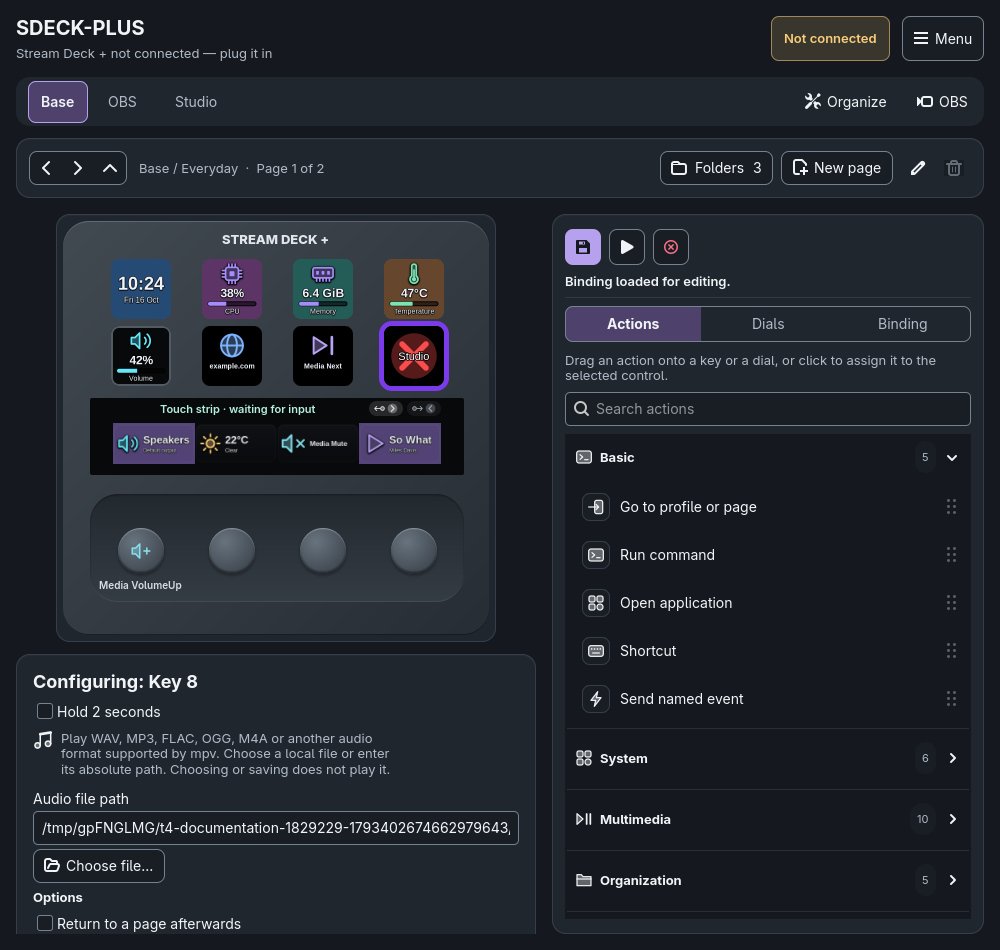
Saving a Play sound or Open file or folder binding with an absolute path creates a symbolic link to the target inside the app's data directory (links/) and stores that link. Relative paths are kept unchanged. The editor still shows the real file, and the same file reuses one link. If the original is moved or deleted, or a relative path such as dry-fart.mp3 or ~/Music/dry-fart.mp3 points nowhere (playback does not expand ~), the key or touch section shows a red cross so you can see it could not run: it replaces the key's own image while the file is missing, and any button text stays on top of the cross, otherwise it is labeled Missing file. Live information still takes priority over the warning. The warning updates when the control is redrawn (for example after saving or changing pages), not immediately when a file disappears. Images are different: they are copied into the app's own storage when chosen. Exports contain relative file references only: ./sonidos/name.mp3, ./imagenes/name.png and ./archivos/name. Neither file contents nor original parent paths or symlink destinations are included.
Key 8 shows a missing sound as a red cross behind its text.
Change audio output switches the default PipeWire output with wpctl; Refresh discovers new outputs with pw-dump.
Bindings store the stable device name, so reconnecting does not select a different device; a disconnected saved device reports an error when used.
Rotate advances from the system's current output to the next connected one on each press, wrapping after the last.
Volume uses the default output in 5% steps, capped at 100%. Media transport uses the session's MPRIS player.
Text, files, websites and processes
Pasting text uses the Wayland clipboard (wl-copy) and a physical Ctrl+V chord, not synthetic Unicode keycodes: it replaces the clipboard
and needs the focused application to accept Ctrl+V. Files, folders and HTTP(S) websites open with xdg-open.
Closing an application targets its exact Linux process basename (1–15 ASCII bytes), not a window title or a shell pattern.
Commands and application launch
Applications are launched with distinct process arguments; no shell evaluates them. In the argument box, an empty box means zero arguments
and \empty on its own line means one empty argument. Backslash, newline, carriage return and tab are written as
\\, \n, \r and \t, so leading and trailing spaces are preserved.
Only the Command action runs /bin/sh -c with the configured string. External actions run one at a time on a background worker,
and failures appear in the window without blocking it.
Optional two-second key hold
Save a key's short action, then select Hold 2 seconds and choose its secondary action from the Actions catalog.
Parameterless actions such as Cancel timer save automatically; otherwise fill the settings and use Save binding.
Release before two seconds to run only the short action; hold for two seconds to run only the secondary action. Releasing afterwards does nothing.
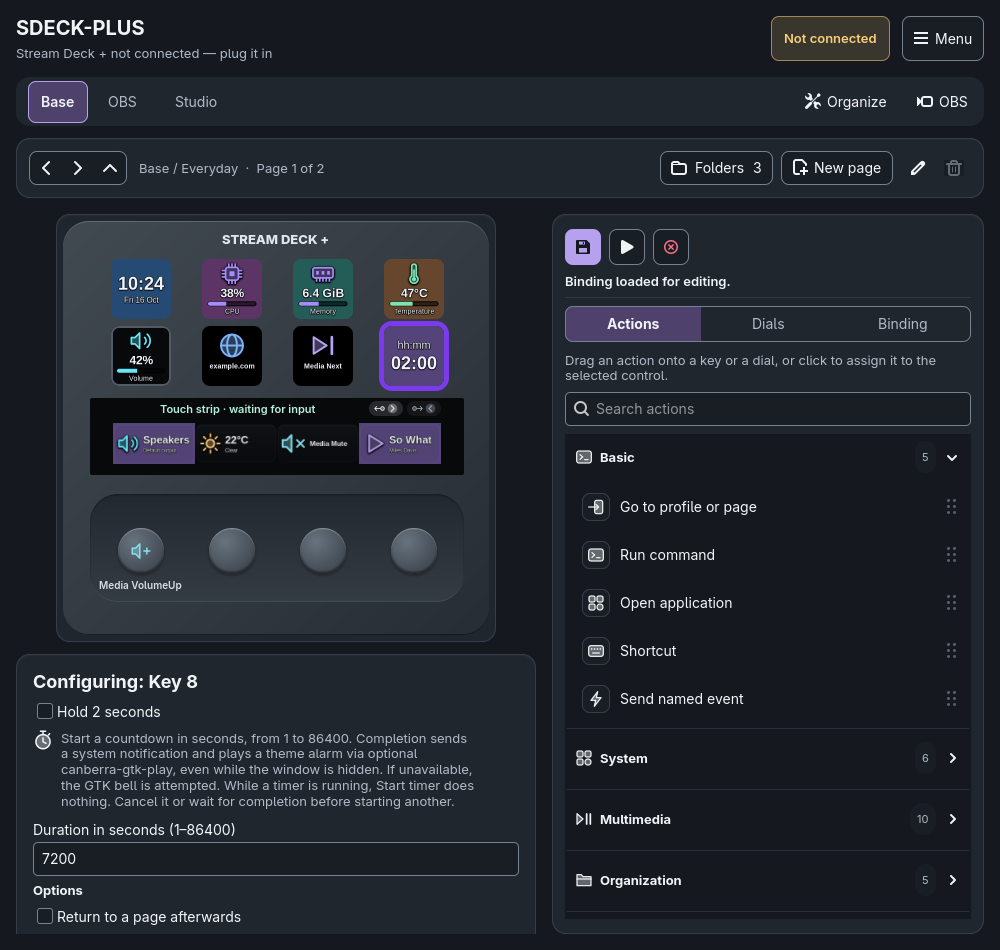
For example, assign Start timer to the short action and Cancel timer to the hold action.
Clear the toggle to edit the short action again. Remove binding in hold mode removes only the secondary action;
without one, keys run immediately on key-down. Hold actions keep independent page returns and do not replace primary artwork or live information.
Dial presses and touch-strip gestures are unchanged.
Countdown timers
Device > Start timer starts a countdown of 1–86400 seconds. Starting it with a physical keypad key temporarily shows
the time left on that key and its app preview in five characters: hh:mm from one hour onwards (7200 seconds → 02:00),
or mm:ss below one hour (3599 seconds → 59:59, 45 seconds → 00:45).
A hh:mm or mm:ss label sits above the large digits and changes with the displayed units.
Its font is approximately 60% of the fitted digits' font size, keeping the format readable without adding extra words.
The countdown stays on its original page, survives reconnects, and restores the key's artwork, text or live information when it ends or is cancelled.
While a timer is running, another Start timer action is ignored: its deadline, remaining time and key picture stay unchanged.
Cancel it or wait until it finishes before starting another. This also applies to Test action and dial or touch input, which do not claim a keypad key.
When it finishes, sdeck-plus sends one system notification
with the timer duration, even while the configuration window is hidden. Desktop notification settings, including Do Not Disturb, control its presentation;
the in-app completion status remains available. Completion also plays the desktop theme's alarm-clock-elapsed sound using optional
canberra-gtk-play, independently of notification settings and without stopping a Play audio file action.
Audio output, volume and theme sound availability still determine audibility. If the helper is missing or playback fails, the GTK bell is attempted
(it may be silent); the notification is still sent. An ignored start does not add a notification or chime. Cancel timer cancels the countdown
without a completion notification or chime, and Quit cancels pending timers. Saving a binding does not start it.
Return to a page afterwards
A non-None binding can return to a page after a delay: tick Return to a page afterwards, pick the destination
(listed with its profile and folder, such as Base or Studio / Page 2) and a delay of 1–86400 seconds.
Pressing the key again restarts the wait and Device > Cancel timer cancels it. Saving never starts the wait.
Physical keyboard actions and /dev/uinput
Shortcut uses a Linux uinput virtual keyboard, not compositor dispatch, shell commands or text typing. Without modifiers it sends one key down/up;
with modifiers it holds them around the main key and releases them in reverse order (CTRL + D, SUPER + RETURN).
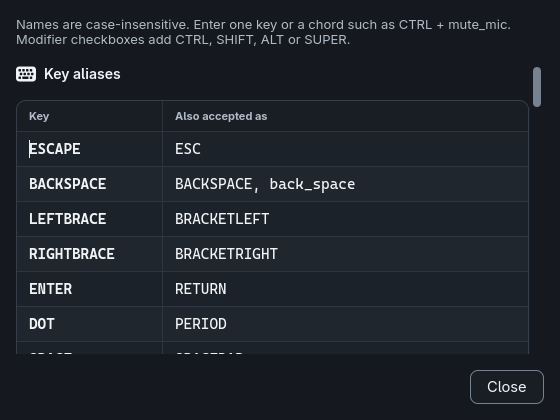
Modifiers are never kept held between actions; failed sends attempt release cleanup. Key names and aliases opens a reference of every accepted name, with the aliases laid out as a table (key and the other names it answers to),
without saving or running the draft.
Shortcut reference with aligned key names and their accepted aliases.
Chord text and modifier toggles are merged in CTRL, SHIFT, ALT, SUPER order. Names are case-insensitive; Control = CTRL,
Win/Windows/Meta = SUPER, Return = Enter. Uppercase letters do not add Shift.
Supported keys: ASCII letters and digits, F1–F24, Enter, Tab, Escape, Space, navigation, named punctuation, keypad and media keys. Unknown names,
empty segments, several main keys or modifier-only chords are rejected.
Media names: XF86AudioLowerVolume, XF86AudioRaiseVolume, XF86AudioMute, XF86AudioMicMute (mute_mic),
XF86AudioPlay (play), XF86AudioPause (media_pause), play_pause, XF86AudioNext (next_track),
XF86AudioPrev (previous), XF86AudioStop, XF86AudioRecord, XF86AudioRewind, XF86AudioForward,
XF86Eject, XF86MonBrightnessUp/Down and XF86KbdBrightnessUp/Down/XF86KbdLightOnOff.
PAUSE, NEXT and STOP keep their keyboard meanings; desktop bindings decide what media keys do.
Names identify physical key positions; the active keyboard layout decides the resulting symbols.
Saved legacy Press key actions keep working and show as a Shortcut without modifiers; they are rewritten only when you save them again.
Unsupported legacy names stay visible and report an error when run.
One persistent virtual keyboard is opened on first use, after a 200 ms discovery grace period. It needs kernel uinput support and effective access to
/dev/uinput; failures are reported with no fallback, privilege escalation, module loading or permission change.
Ask an administrator for narrowly scoped access if needed. Mouse-wheel actions need the same access.
Live information on keys and dials
In the Binding tab of the right-hand panel, tick Show live information on the key for the selected key or dial and choose volume (crossed out while muted), audio output device,
Stream Deck brightness, time and date, weather, CPU, memory, temperature (bars turn amber and red under load), OBS state (recording, streaming and scene)
or Now playing (the title and artist with a play icon, greyed with a pause icon while paused, and Nothing playing when no media plays).
On a key the icon, value, bar and caption are drawn over the key's own image and always fit; on a touch section they sit on a see-through tile
beside the icon, leaving the page-indicator edge free. Only the control showing a value is redrawn, the binding's action still runs, and the
window preview matches the device.
Binding tab with the live-information toggle for the selected control.
Each touch section can show information for its Tap or Hold binding. A dial's section shows its press binding first, then its turns, then a tap or hold on
that section. Flick, swipes and whole-strip gestures cannot show information. Weather uses Open-Meteo through curl with a city or
latitude,longitude, needs internet access and shows -- when the lookup fails. Volume and audio device use wpctl.
Now playing reads MPRIS players on the session bus every second without controlling them: a playing player wins, then the paused one that played
last; it shows -- when the session bus is unavailable. When the player's application icon can be found in the installed icon themes,
it replaces the play or pause icon, with a small play or pause badge in its corner. A title too long for its key or section scrolls slowly at a readable size
while it plays (after a short pause, then looping); a paused title stays still and ends in an ellipsis.
Touch strip and touchscreen pages
Sections and gestures
The strip has four sections, one above each dial. Choose Touch, then control 1 to 4, and give each section its own
Tap and Hold binding. Any keeps the older whole-strip bindings, which still handle taps no section claims.
Flick and swipes always apply to the whole strip.
Touch bindings, section information, strip and section images and every dial binding belong to the profile's selected touchscreen page,
not to keypad pages or folders: changing a keypad page or opening a folder keeps the touch page.
Touchscreen pages and swipes
Select a dial, the strip or a section to show Touch page. Browse with its selector and arrows, add a blank page with +,
or delete the selected one with the trash button after confirming (keypad pages are unchanged; a profile keeps at least one). Each profile remembers its
selection across restarts and holds up to 64 touch pages.
Swiping left shows the next touch page and right the previous one while those gestures have no binding of their own; a Flick binding also takes precedence.
Swipe up and down have no default. More actions > Organization > Next/Previous touchscreen page is offered only for touch controls and does not wrap.
Edge chevrons on the device and preview show available directions. Delayed returns still target keypad pages.
Touchscreen data and upgrades
Existing configurations migrate automatically: each distinct touch and dial configuration in a profile becomes a touchscreen page, equal ones share a page,
and actions, None bindings, delayed returns, information and image references are preserved. Upgraded version-1 touch pages keep their edits and receive a copy
of the dials from their profile's main keypad page; legacy records are retained and migration is not repeated. The upgraded touchscreen.json
is version 2, which older app versions cannot read.
Invalid touchscreen configuration blocks saving instead of replacing the file. layers.conf and touchscreen.json are staged together;
if the final replacement fails the previous layer file is restored, and a synced recovery journal lets startup restore or keep the pair after an interrupted save.
Unreadable recovery state is reported, never silently replaced.
Profiles, pages and folders
Profiles and application switching
Profiles are tabs, with Base always available and undeletable. Organize > New profile creates one
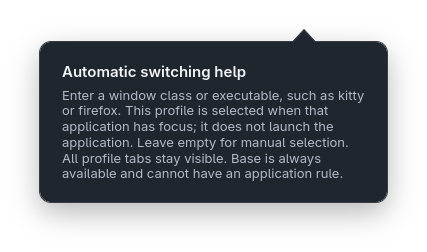
(Create profile stays disabled until the name is new). Organize > Edit profile sets an optional window class or executable
name such as kitty, firefox or obs; Save changes is enabled only when the rule changed. Base cannot require an application.
Detection uses Hyprland IPC focus events, not process polling. A matching application selects its profile; unmatched or unavailable focus returns to Base;
focusing the configuration window keeps the last external context. A manual tab choice lasts until the next external focus change. Selecting a profile never
launches its application. Every start opens on Base's first page.
Pages
New page asks for a name first. The pencil renames the current page (Save name or Enter): names must be non-blank, without control
characters and at most 64 UTF-8 bytes; surrounding spaces are trimmed. The trash button deletes the page with its folders, bindings and artwork after confirming.
Previous, next and parent arrows sit before the page name. Navigation stays within the current profile and folder, and switching tabs restores that
profile's last page for the session.
Page folders
The folder icon in the page bar opens Page folders. Type a name in New folder name and press Enter; blank, duplicate and invalid names are explained
while typing. Each row offers Open, Link to control (saves navigation to the folder on the selected control and event without opening it),
Rename (Enter saves, Escape cancels; linked controls follow the new name) and Delete (removes only this page's folder and its links).
Parent returns to the exact owning page.
organization.json stores this hierarchy (version 2, with stable page-owner keys). Version-1 folders attach to their former parent's first surviving page;
flat layers load as independent profiles; legacy brightness-v1 and scroll-v1 records load as typed actions.
Invalid metadata is kept untouched and disables organization writes until repaired.
Appearance
Button text
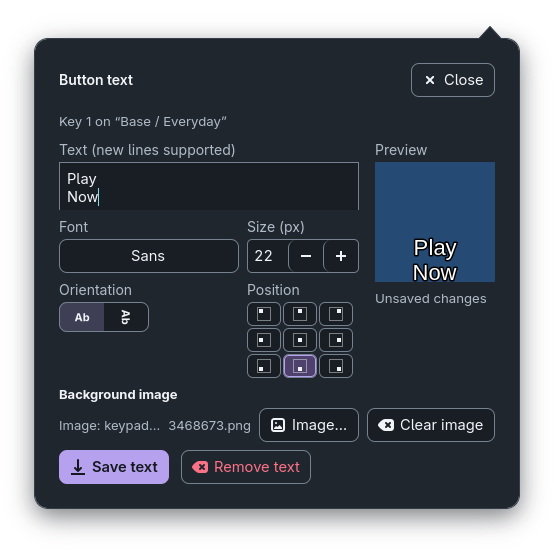
Right-click a key and choose Add text and image… (Edit text and image… once it has text). The popover opens on that key and also holds its Background image: Image… chooses one and Clear image removes it. The Appearance section is gone from the inspector for keys and dials; only the touch strip and its zones keep theirs for now. The popover names the key and page, for example "Key 3 on “Everyday / Page 1”".
Choose an installed font, a size from 6 to 120 px, horizontal or vertical orientation (vertical rotates the text 90° clockwise) and a position on a 3x3 grid.
Text is white with a black outline and may span several lines.
The preview shows the key as the device will: over its image, over its action icon when the text leaves room, or over black, with a warning when the text does not fit
(the device clips it). Save text or Ctrl+Enter saves; it is enabled only for non-blank changes, flagged by "Unsaved changes".
Closing discards the draft. Remove text keeps the background image, and clearing the image keeps the text.
Right-click a decorated key to edit its text and image.Text and background image editing in one key popover.
Window layout and themes
The window opens at 1000 × 700 with a fixed 440 × 428 device preview and the selected control's settings on the left; Actions, Dials and Binding tabs sit on the right. Long configuration forms scroll vertically within their own settings area rather than resizing the preview. The desk uses the window width up to 1240 px and centers beyond it; at 640 px the panels stack without horizontal scrolling.
Charcoal (dark) or pale-gray (light) surfaces follow the desktop GTK theme, with violet save actions and a cyan keyboard-focus outline.
Bare information icons show their help on hover or keyboard-visible focus. The Organize panel uses Edit profile and New profile tabs; the Base profile callout explains its restrictions. Transitions follow GTK's animation setting. The full layout contract is in
DESIGN.md.
Profile auto-switch help shown by hovering its information icon.
Background images
For a key, right-click and use Image… or Clear image in its text/image popover. For the strip and its zones, pick a target in Artwork target (active layer) under Appearance, then choose or clear its image. The picker lists five targets: the touch-strip
background and four touch zones. Clicking a zone selects its target; clicking a dial selects only its binding. PNG, GIF and any format
supported by the installed GdkPixbuf loaders work; GIFs are sent as a still image because the hardware upload format is JPEG.
Images are center-cropped and sent as 120 × 120 (keys), 800 × 100 (strip) or 200 × 100 (zone) JPEGs; the strip background and zones are layered.
Images are copied into the data directory, so originals can be moved or deleted. Artwork is independent per layer: switching layers replaces the device's
whole image state (unassigned keys turn black) and the same state is replayed after reconnecting. Clearing a key sends a black image; clearing strip artwork
rebuilds the strip from what remains. A file chooser saves to the target and layer captured when it opened. A failed import keeps the current assignment,
storage failures disable artwork writes instead of saving an empty fallback, and upload failures appear in the connection status.
Binding icons
Every action has a two-tone icon used in the Action and More actions menus, on the preview dials, and on keys and touch sections without
their own artwork, both in the preview and on the device. Each family has its own color: media violet, audio cyan, OBS red, apps and system amber, websites blue,
pages and folders white. Badges above the preview strip list what swipes, tap and hold do (dimmed while an unbound swipe keeps its default page change).
Your artwork normally wins; a missing sound/file target instead shows a red cross even over artwork or behind centered/vertical text (live information retains priority). For other action icons, button text keeps its placement (the icon uses free space above or below it), and keys set to None or left unassigned stay black.
Icons are never saved into your artwork or text.
OBS Studio
Connect to OBS
In OBS, enable the built-in WebSocket server under Tools > WebSocket Server Settings. In sdeck-plus, click OBS in the profile bar, enter
the local endpoint (normally ws://127.0.0.1:4455) and password, save and test. The test queries scenes and recording/streaming state and never starts an
output. Scene, source and input names must match OBS.
Only loopback endpoints are accepted. Requests run on a worker with bounded waits, and authentication, connection and request errors appear in the window.
Credentials are stored in owner-only obs.json, not in bindings, and are masked in the editor and diagnostics.
The app does not enable the OBS server or change its configuration.
Data, tray and lifecycle
Data location and files
Configuration lives in $XDG_DATA_HOME/sdeck-plus, or $HOME/.local/share/sdeck-plus when it is unset (normally
~/.local/share/sdeck-plus): layers.conf (keypad layers and bindings), touchscreen.json, organization.json,
info.json, obs.json, the assets directory with its artwork manifest, and button-errors.log.
An unreadable or unsupported layers.conf leaves configuration unavailable with writes disabled; repair it and restart. In a readable file, invalid, conflicting
or duplicate records are removed and logged with their reasons in button-errors.log. Removing a layer also removes references to it.
Backup and restore
Menu > Export configuration... writes one owner-only .sdeck-plus.json with profiles, folders, pages, bindings, image references, button text,
live information, page returns and OBS settings, including credentials. Format version 4 stores configuration as readable UTF-8 text inside JSON, without base64. It never includes image, sound or other file contents.
File references keep only a type folder and filename: /home/aldo/.../musica/cancionX.mp3 becomes ./sonidos/cancionX.mp3;
all background images (keys, the whole touch strip and individual zones) use ./imagenes/filename.png, and Open file/folder targets and explicit executable paths use ./archivos/filename.
Existing copied images keep their app-assigned filename. Original directories and symlink destinations stay on the source machine.
Different targets with the same exported name cancel export with a collision message; rename one before retrying.
On import, these folders are relative to the destination's application data directory, not the export file or the working directory. Local files and links are preserved;
missing files do not block import. Put the files (or local symlinks to them) in those folders, or choose replacement files in the editor. Existing copied images in
assets can be reused by filename. An existing unreadable or invalid image cancels import rather than discarding its assignment.
Import validates first, asks for confirmation, retains previous configuration metadata in a sibling backup, and refreshes the device without running saved actions.
Legacy version-1, version-2 and version-3 exports remain importable with their original encoding and file-reference rules.
This is not general secret redaction: URLs, command text, application arguments, button text and OBS credentials remain verbatim. Review those fields before sharing.
System tray and login startup
Closing the window hides it; the device, bindings, artwork, timers and app-owned playback stay active until Quit. Either click on the tray icon opens
Open configuration, Start at login, Start in tray (on by default; saved in tray.json), About and Quit.
A tray supporting StatusNotifierItem is required.
Autostart writes $XDG_CONFIG_HOME/autostart/sdeck-plus.desktop (or ~/.config/autostart/) and starts the current executable with
--background; disable and re-enable it after moving the executable. Run cargo run -- --background for a quiet manual start.
Repeated launches reuse the running instance. If the session bus is unreachable, closing the window exits instead of hiding.
Quitting and reconnecting
Quit discards pending uploads, turns off display brightness, clears the keys and touch strip to black, stops the action worker and app-owned playback,
cancels timers and releases the device; a blocked driver call can delay exiting. Independently opened applications stay open.
On the next launch brightness returns to 100% and saved artwork is replayed. While running, unplugging and reconnecting retries automatically.
Upgrading from the previous name
The application, package and executable are named sdeck-plus, with the data directory sdeck-plus and autostart entry
sdeck-plus.desktop; the application ID stays the same so launches reuse one instance. Files are not migrated automatically: quit the old application,
move its data directory to the new path to keep profiles, artwork and OBS settings, then disable the old autostart entry and re-enable Start at login.
Contributing
Development
Checks and tools for working on sdeck-plus from a checkout. Build requirements are listed under Install.
The headless run covers the Rust suites but skips display-dependent GTK bodies. Run native GTK cases separately in a graphical session so each process owns
its GTK main thread, for example:
The serialized layout test checks the thirteen artwork paths and every action at 1000 × 700, horizontal fit at 1840 × 980, 1280 × 720 and 960 × 640, and scroll
reachability at 640 × 480. These checks do not replace real file-chooser, accessibility or device verification.
Documentation screenshots
The captures in docs/screenshots are generated from the production widgets with isolated demonstration profiles; they do not operate a device,
change audio output or connect to OBS. Regenerate them from a graphical session (captures use a 1000 × 950 window):
Close other instances first so one HID worker owns the device. --device-controls sends real brightness (50%, relative), sleep and wake reports and leaves
brightness at 50%; --input waits up to 60 seconds for a key press, dial rotation and touch gesture.
cargo run --offline --example verify_streamdeck -- --device-controls
cargo run --offline --example verify_streamdeck -- --input
cargo run --offline --example verify_obs -- "$HOME/.local/share/sdeck-plus"
cargo run --offline --example verify_desktop
dbus-run-session -- cargo run --offline --example verify_multimedia -- /path/to/silent.wav
The OBS check authenticates, queries scenes and output state and reselects the current scene, without recording or streaming; configure obs.json
through the app first. The desktop check pastes exact Unicode into its own window; the multimedia check runs mpv on an isolated D-Bus session and needs a local
silent audio file and the mpv-mpris plugin.
In-process event API
src/event_api.rs defines the typed MonitorEvent boundary: Connection(ConnectionState), Input(protocol::Event) for decoded
HID input and ArtworkResult for upload results; consumers ignore the Heartbeat probe. start_hid_monitor returns an owned
HidController with an artwork sender, explicit cancellation and idempotent joined cleanup, and runs initialization, retries, timed reads and serialized
image writes on one thread. Only the newest pending artwork snapshot is applied, and GTK polls results with a short GLib timer.
Internal events use the MonitorEvent::AppEvent channel. There is no TCP, HTTP or WebSocket listener.
The protocol decoder validates the report ID and declared little-endian payload length before decoding input.
Code organization
src/main.rs
Startup, configuration window, worker lifecycle, GTK test fixtures
Configuration export, image references, validation, backup and restore
src/info.rs, src/info_render.rs
Live readings and the key/section compositor
src/desktop_actions/audio_output.rs
Fixed and rotating PipeWire output selection
src/tray.rs, src/autostart.rs
Tray menu, About dialog, login startup entry
src/ui.rs, DESIGN.md
Shared controls and panels; layout and accessibility contract
Keep device work off the GTK thread; closing the window must not stop bindings, polling or timers, and shutdown owns cleanup. GTK checks keep a single owning
test thread. Run the checks above after changing code or tests.
No sections match your filter.
Try a shorter word, or clear the filter to show everything.
 sdeck-plus